
Hey folks, if you’re anything like me—a busy parent juggling work emails, kids’ homework, and the endless stream of family photos that need to be printed—you know the agony when your reliable Canon printer suddenly decides it’s “done.” One minute it’s humming along, spitting out crisp docs; the next, it’s flashing those ominous lights and throwing up an error like “Ink absorber full” or code 5B00. My Canon PIXMA MG3620 pulled this stunt right before a big presentation last month. I was staring at a blinking orange light, convinced I’d have to shell out for repairs or a replacement.
Spoiler: I didn’t. With a free resetter tool, I got it back online in under 15 minutes, no service fees, no new hardware. If you’re dealing with waste ink woes on your Canon, this is your roadmap. I’ll share my story, explain what’s going on under the hood, and walk you through safe, legit ways to reset without the fluff or upsells. Let’s get your printer purring again.

When My Printer Hit the Wall (And How I Knew It Was the Ink Absorber)
Picture this: It’s a Tuesday evening, deadline looming, and my MG3620 starts beeping like it’s auditioning for an alarm clock. The alarm lamp flashes seven times, then pauses—classic Canon code for “Hey, that sponge inside me that’s soaking up all the excess ink from cleanings? It’s hit capacity.” Canon calls it the “waste ink absorber pad,” but to us mortals, it’s just a sneaky way the printer tracks maintenance to avoid leaks.
Why does this happen? Every print head cleaning (which Canon does automatically to keep nozzles clear) dumps a tiny bit of ink into this absorbent pad. After a few thousand pages—say, 6-8 months of moderate use—the counter maxes out at 100%, even if the pad’s only half-full. It’s a built-in safety net, sure, but it feels like planned frustration when you’re not swimming in cash for pro fixes.
I Googled frantically (“Canon ink absorber full fix free”) and stumbled on resetter tools—simple apps that zero out the counter so your printer forgets it’s “full.” No, it doesn’t empty the pad (that’s a separate chore if it’s truly overflowing), but for most folks, it’s a godsend that buys you months or years more life.

Demystifying Resetter Tools: What They Are and Why They’re (Mostly) Free
These aren’t some black-hat hack; they’re utilities born from the DIY printer community. Think of them as digital skeleton keys—often leaked or community-shared versions of Canon’s own service software. Popular ones include:
- Canon Service Tool (versions like V3400, V5103, or V5610): The OG for many PIXMA models. Resets counters, tests print heads, and tweaks settings.
- WIC Reset Utility: A universal free downloader (with optional paid keys for some features) that works across Canon, Epson, and more.
- Model-Specific Resetter: For tanks like G3010 or G-series, free apps tailored to reset P07 errors.
The best part? Free versions abound on trusted forums and tech sites. But heads up: Avoid torrent pits or random ads—stick to vetted sources to dodge malware. I scanned everything with my antivirus and came out clean.
Safety first: These tools are low-risk if your printer’s out of warranty. They won’t brick it, but always unplug/replug and follow steps precisely. And ethically? Canon’s not thrilled, but neither am I about paying $80 for a 10-minute job. This is user empowerment, not piracy.

My Foolproof Reset Routine: Step-by-Step for the PIXMA Crowd
I went with the Service Tool V5103 for my MG3620—it’s versatile and dead simple. Your model might vary (check Canon’s error code list), but the vibe’s the same. Here’s what worked for me on Windows 10; Mac users, grab the equivalent from the same spots.

Prep Work: Set the Stage
- Confirm the Culprit: Power cycle your printer (off for 30 seconds, then on). If the alarm flashes 7-8 times with a green power light, bingo—waste ink alert.
- Gather Gear: USB cable (wireless won’t cut it), admin access on your PC, and a test page ready.
- Download Smart: Head to free Canon Service Tool V5103.
Canon PIXMA Waste Ink Resetter tool
Enter the Magic: Running the Reset
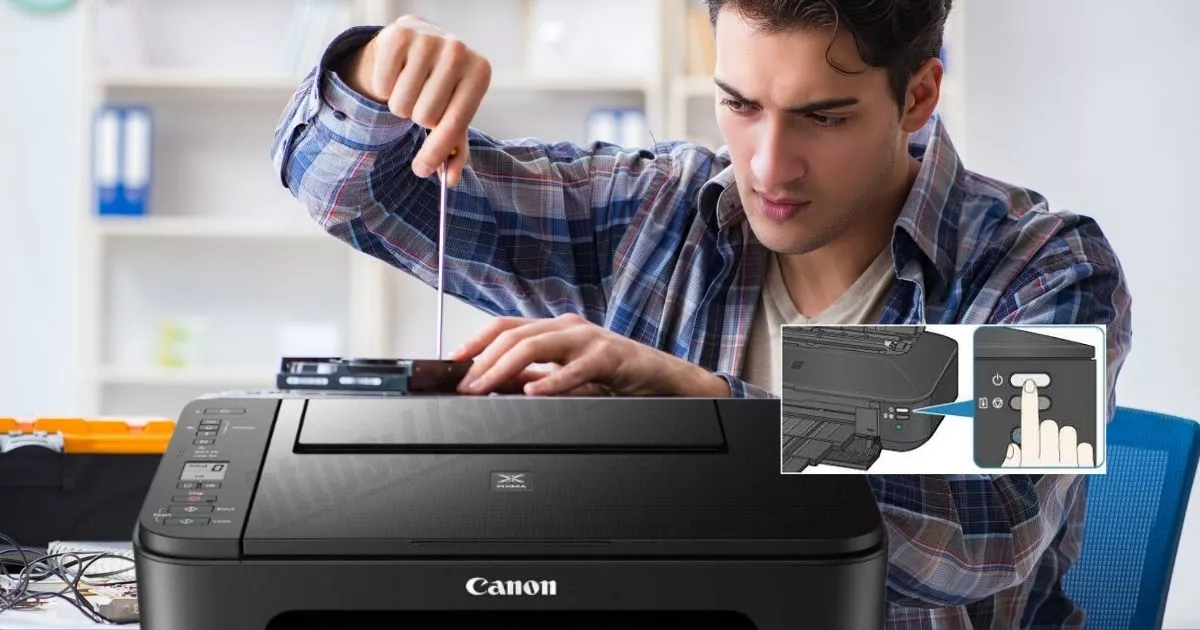
- Boot into Service Mode: Unplug the printer’s power cord. Hold down the Stop button (that red triangle one), then plug back in while holding. Release when the alarm light flashes. (Screen might go blank or say “Service Mode”—you’re in!)
- Launch the Tool: Run the .exe as admin. Ignore any “Error 006” pop-ups (common for unsupported tweaks; just proceed). Select your region (e.g., “USA” or “EUR”) and model series (PIXMA for most).
- Zero the Counter: Click the “Waste Ink Counter” or “Clear Ink Absorber” tab. Hit “Check” to see the fill level (mine was 92%). Then “Set” or “Initialize”—it’ll chug for 10-20 seconds.
- Exit and Test: Power off the printer fully, unplug for a minute, then restart normally. Print a test page. If it rolls without drama, you’re golden!
Total time? 10-15 minutes. Mine printed flawlessly post-reset, like nothing happened.
Quick Fixes for Common Hiccups
- Error 002 or 006? Tool incompatibility—try V3400 instead or confirm your model (e.g., G-series need special handling).
- No Service Mode? Double-check button timing; some models use Power + Stop.
- Mac Woes? WIC Reset has a free trial that covers basics without keys.
For tank models like G3010, it’s even easier: Download a dedicated resetter from anturis.com, run it in user mode, and boom—P07 gone. No disassembly required.
Beyond the Reset: Keeping Your Canon Happy Long-Term
Resetting’s a band-aid, not a cure-all. If your pad’s leaking (inky smells or stains), clean it manually—iFixit’s got killer guides for models like IP4600. Warm soapy water on the sponges, dry thoroughly, reassemble. Or upgrade to an external waste tank mod (under $20 on Amazon) for endless resets.
For G1000-G4000 series, Canon’s got a free button-combo reset—no software needed. Just power on, feed paper, and mash Resume/Stop in sequence till it prints a status sheet with D=0. Genius, right?
Wrapping It Up: Print Smarter, Not Harder
Dodging that ink absorber error saved my bacon—and about $100 in service fees. My MG3620’s back to being the unsung hero of our home office, churning out everything from grocery lists to vacation pics. If you’re staring down a stubborn Canon, grab a free resetter, roll up your sleeves, and reclaim your print life.
Canon PIXMA Waste Ink Resetter: Quick FAQs for Instant Fixes
- 1. What does “Ink Absorber Full” mean on my Canon PIXMA?
It means the printer’s internal counter has hit 100% for waste ink collected during cleanings. Canon stops printing to prevent leaks—even if the actual sponge isn’t overflowing. Common on MG3620, G3010, TS3322, etc. - 2. Is there a free resetter for Canon PIXMA printers?
Yes! The Canon Service Tool (v3400, v5103, v5610) is free and widely shared on trusted sites like 2manuals.com or printerforums. No payment, no subscription—just a ZIP file and 10 minutes. - 3. Which Canon models work with the Service Tool?
Most PIXMA inkjets: - MG Series: MG2522, MG3620, MG5720
G Series (Tanks): G1000, G2000, G3010, G4010
TS Series: TS3122, TS5320
Check your exact model—some need specific versions (e.g., v5103 for newer tanks). - 4. How do I use the Canon Service Tool? (Step-by-Step)
Download v5103 or v3400 from a safe source.
Enter Service Mode: Unplug printer → hold Stop → plug in → release when alarm flashes.
Connect via USB (Wi-Fi won’t work).
Run tool as admin → select model → go to “Clear Ink Counter” → hit Set.
Power cycle → print test page. Done!
Pro tip: Disable antivirus temporarily—it may flag the .exe. - 5. What if I get “Error 006” or “Error 002”?
Error 006: Tool doesn’t support your model → try v3400 instead.
Error 002: Printer not in service mode → re-do button combo.
Still stuck? Use WIC Reset Utility (free trial covers basic reset). - 6. Is using a resetter safe? Will it damage my printer?
100% safe when done correctly. It only resets a software counter—no hardware changes. Used by millions.
⚠️ Only risk: If under warranty, Canon might deny service (rarely enforced). - 7. Does resetting clean the ink absorber pad?
No. It only resets the counter.
If you smell ink or see leaks → clean the pad manually (soapy water + dry) or install an external waste tank ($12 on Amazon). - 8. How often can I reset my Canon printer?
As many times as needed—but clean the pad every 2–3 resets to avoid real overflow. Heavy users: go external tank for unlimited resets. - 9. Can I reset without a computer?
Yes, on some models! - G1000–G4000 Series: Power on → feed paper → press Resume 5 times → check status sheet (D=000.0 = reset).
Others: Need PC + USB. - 10. My printer still won’t print after reset—what now?
Try:
Different USB port/cable
Re-enter service mode
Update printer drivers
Run nozzle check in maintenance menu
Still no? Comment your model + error code below—I’ll help!