We don’t usually think much about Bluetooth. It’s just one of those features that quietly works in the background—until the moment it doesn’t. And suddenly, a simple thing like connecting your Bluetooth earbuds, sharing a photo from your phone, or pairing a wireless mouse becomes a tiring puzzle. If you’re using a Dell laptop or desktop and your Bluetooth isn’t working, you’re certainly not alone. This problem happens more often than we expect.
But here’s the good news: most of the time, the issue isn’t something complicated or permanent. The real culprit is usually one small thing—the Bluetooth driver.
The Dell Bluetooth driver is like a translator that helps your computer communicate with Bluetooth devices. Without it, your laptop simply doesn’t understand how to talk to your wireless headphones, speakers, keyboards, or phones. Which means: no Bluetooth.
In this guide, I’m going to walk you through everything in a very simple, clear way. Not technical. Not confusing. Just real, practical help. If your Bluetooth isn’t working, this might finally solve it.
What Is a Bluetooth Driver and Why Does It Matter?
Let’s imagine your Bluetooth headphones are like a visitor who speaks a foreign language. Your Dell computer is another person who doesn’t understand that language. Now, how will they communicate? They can’t—unless there’s an interpreter. That interpreter is your Bluetooth driver.
If the driver is:
- Missing
- Outdated
- Corrupted
- Replaced by a Windows update
Then communication breaks down. So your laptop either:
- Doesn’t show Bluetooth at all
- Shows Bluetooth but refuses to connect
- Connects but disconnects randomly
- Or gives terrible audio quality
In short, a working Bluetooth driver = working Bluetooth.
A broken or missing driver = headache.
Why Does Bluetooth Stop Working on Dell Laptops?
From what I’ve seen, there are a few common reasons:
- Windows Updates quietly replace drivers.
- The driver becomes corrupted after a system shutdown, crash, or virus scan.
- The Bluetooth service gets turned off automatically.
- You accidentally deleted or removed a driver without realizing.
- You reinstalled Windows and forgot to reinstall Dell drivers.
- The driver installed is for another brand, not Dell.
A tiny thing causes a big inconvenience.
But the solution is usually not complicated.
How to Check Your Dell Laptop or Desktop Model
Before you install anything, you should know your device model. Here’s an easy way:
- Press Windows Key + R
- Type: msinfo32
- Hit Enter
- Look for System Model
You’ll see something like:
- Dell Inspiron 15 3000
- Dell Latitude 5490
- Dell Vostro 3401
- Dell XPS 13
- Dell OptiPlex 3020
Keep that name. We’ll use it soon.
The Correct and Safest Way to Download the Dell Bluetooth Driver
Never download drivers from random third-party websites.
Some may be broken, outdated, or worse—infected.
The safest and most reliable place is Dell’s official support page.
Steps to Download the Right Bluetooth Driver
- Open the web browser.
- Go to:
Drivers.dell.com/support - Enter your Dell model (for example, Dell Latitude 5420) in the search box.
- Click Enter.
- To locate the Bluetooth or Network area, scroll.
- Get the compatible Bluetooth driver:
- Your version of Windows (Windows 10 or Windows 11).
- Your system design, which is primarily 64-bit
You may see names such as:
- Wireless Bluetooth Driver for Intel
- Bluetooth Driver for Qualcomm
- Bluetooth Driver by Realtek
- Driver for Killer Bluetooth
If the page specifies that it is for your Dell model, then any of these are acceptable.
How to Install It
- Double-click the downloaded file.
- Click Install.
- Let it complete.
- Restart your laptop (this step really matters).
After restarting, Bluetooth usually returns instantly.
If Bluetooth Still Doesn’t Work, Try These Fixes
Sometimes drivers are fine but the Bluetooth service is turned off. Let’s turn it back on:
Fix 1: Enable Bluetooth Service
- Press Windows Key + R
- Type: services.msc
- Press Enter
- Find:
Bluetooth Support Service - Right-click → Properties
- Set Startup Type to Automatic
- Click Start
- Save and restart.
This one small step fixes the issue for many people.
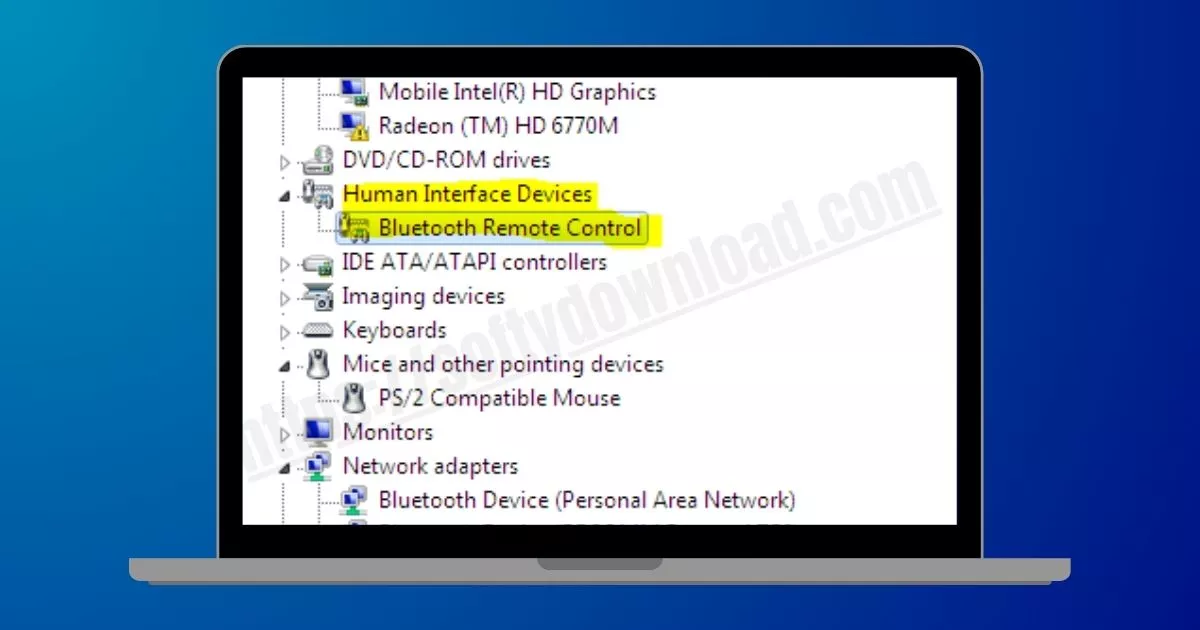
Fix 2: Reinstall the Driver from Device Manager
- Press Windows Key + X
- Select Device Manager
- Scroll to Bluetooth
- Right-click the Bluetooth adapter → Uninstall
- Restart your PC.
Windows will reinstall the correct driver automatically.
Fix 3: Reset Bluetooth Radio Power
This works surprisingly well.
- Turn Bluetooth off.
- Shut down the laptop completely (not restart).
- Wait 1 minute.
- Turn it back on.
- Turn Bluetooth on.
It refreshes the internal Bluetooth radio.
Fixing Bluetooth Audio Quality Problems
Bluetooth headphones sometimes connect in “Hands-Free Mode,” which gives awful sound. If your headphones sound muffled, scratchy, or metallic, this may be the reason.
How to Fix It
- Right-click the Speaker icon.
- Select Sound Settings.
- Under Output device, choose:
Headset (Stereo) instead of Hands-Free AG Audio.
Music will sound instantly clearer.
Connecting Your Phone to Your Dell Laptop via Bluetooth
Many people think simply pairing the phone and laptop is enough. But to send files, your laptop must be in receive mode.
Correct Method
- Pair your phone and laptop normally.
- On your laptop, press Windows Key and search:
Bluetooth File Transfer - Click Receive a File
- Now send the file from your phone.
This tiny step makes all the difference.
What If Bluetooth Is Completely Missing from Settings?
This occurs when:
- The driver has vanished.
- The adaptor is not in use.
- There is damage to the Bluetooth hardware.
Try this before considering a hardware malfunction:
- Open Device Manager.
- Select View → Display Hidden Devices.
- Check for Bluetooth.
- Reinstall the driver if it’s present but dim or gray.
- Download and reinstall the appropriate driver if it’s completely absent.
The last possibility, but uncommon, is that the Bluetooth chip is broken if it is still not showing up.
Old Dell Laptop? Consider a Bluetooth Dongle
If your Dell laptop is more than 8–10 years old, the built-in Bluetooth might struggle.
In that case, a USB Bluetooth 5.0 dongle is a simple and cheap upgrade. It improves:
- Range (distance)
- Stability
- Audio quality
- Device compatibility
Just plug it in. No configuration needed.
FAQs
- Why should I download drivers only from Dell’s official website?
Because Dell configures drivers specifically for their hardware. Other sites may offer versions that don’t match your device, causing more problems. - My Bluetooth connects but keeps disconnecting. What should I do?
Disable power saving:- Open Device Manager.
- Right-click Bluetooth Adapter → Properties.
- Go to Power Management.
- Uncheck:
“Allow the computer to turn off this device to save power.”
- Is it safe to use Bluetooth headphones for calls and music together?
Yes, but always select Stereo mode for music. Hands-free mode is meant only for calls. - Can I use Bluetooth to share internet between devices?
Yes. Some phones allow Bluetooth tethering. But Wi-Fi hotspot is usually faster. - Do BIOS updates affect Bluetooth?
Sometimes. If Bluetooth stopped working after updating BIOS, reinstall the Bluetooth driver. - Why does Bluetooth become slow when multiple devices are connected?
Bluetooth has bandwidth limits. Try disconnecting non-essential devices. - Can Bluetooth work without Wi-Fi?
Yes. Bluetooth and Wi-Fi are separate, though they sometimes use the same chip. - My Dell laptop says “Bluetooth not available.” What does it mean?
This usually means the driver is missing or disabled. Reinstall the correct driver. - Will resetting Windows delete my Bluetooth driver?
Yes. After a reset, you must reinstall drivers from Dell’s support site. - How often should I update my Bluetooth driver?
Only when something stops working. If everything is fine, no need to update.
Final Words
Bluetooth may seem like a small feature, but it connects us to the things we use daily—our music, our wireless keyboards, our phones, even our speakers while relaxing. So when Bluetooth stops working, it’s not just a tech issue—it’s a disruption to comfort.
The good news is that in most cases, the fix is simple:
- Download the correct Dell Bluetooth driver
- Install it properly
- Restart your system
- Ensure Bluetooth service is running
Once you do this, Bluetooth usually works smoothly again.