If you own an Epson L1300, you probably already know how reliable it is for large-format printing. Architects, designers, students, and professionals love this printer because it produces high-quality outputs without breaking the bank. But like every printer in the Epson L-series, the L1300 can sometimes stop working and show confusing error lights.
When this happens, don’t assume your printer is broken. In most cases, it simply means your printer needs a reset. Resetting an Epson L1300 is not about fixing hardware—it’s mainly about clearing the waste ink pad counter that keeps track of maintenance activities.
This blog will walk you through why resets are needed, how to do them step by step, and answer some common questions users ask.
Why Does the Epson L1300 Need a Reset?
Epson printers have a built-in system that collects leftover ink during cleaning cycles. This ink goes into the waste ink pad. To prevent overflow, the printer counts the amount of ink sent there and, after a certain limit, assumes the pad is full.
At this stage, your Epson L1300 may show:
- Red blinking lights on the panel
- An error message like “Service required” or “Ink pad full”
- Refusal to print anything
Even if the pad is not physically full, the printer locks itself until you reset the counter. This is where the Epson L1300 reset process becomes useful.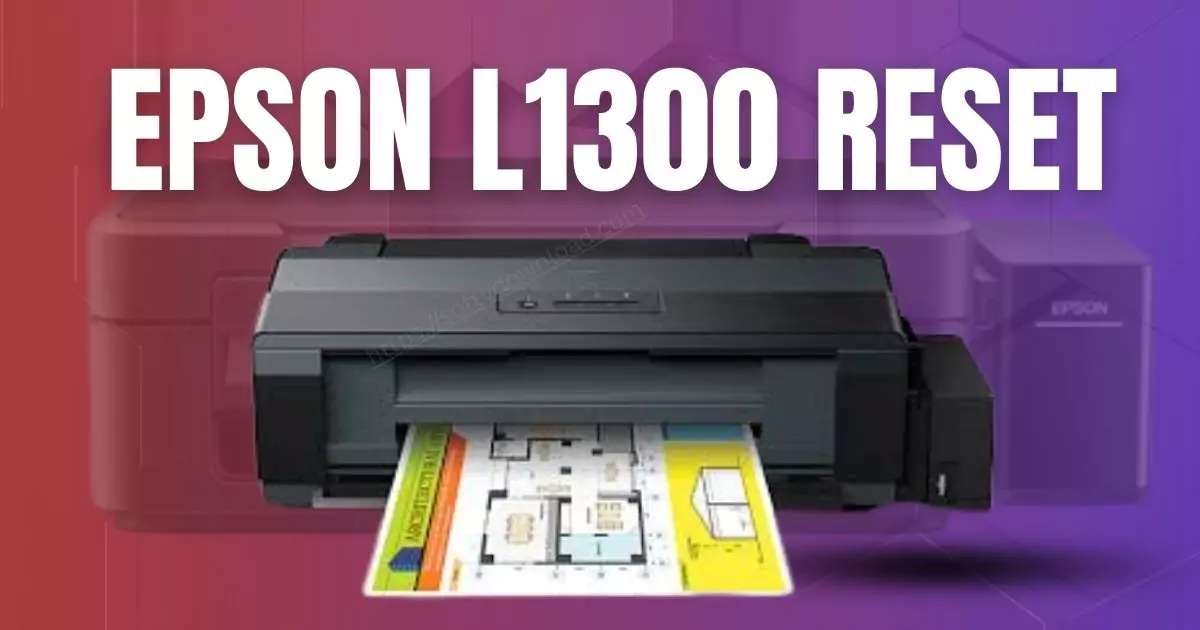
How to Reset Epson L1300
There are two reliable methods to reset your Epson L1300 printer:
1. Reset with Epson Adjustment Program (Resetter Tool)
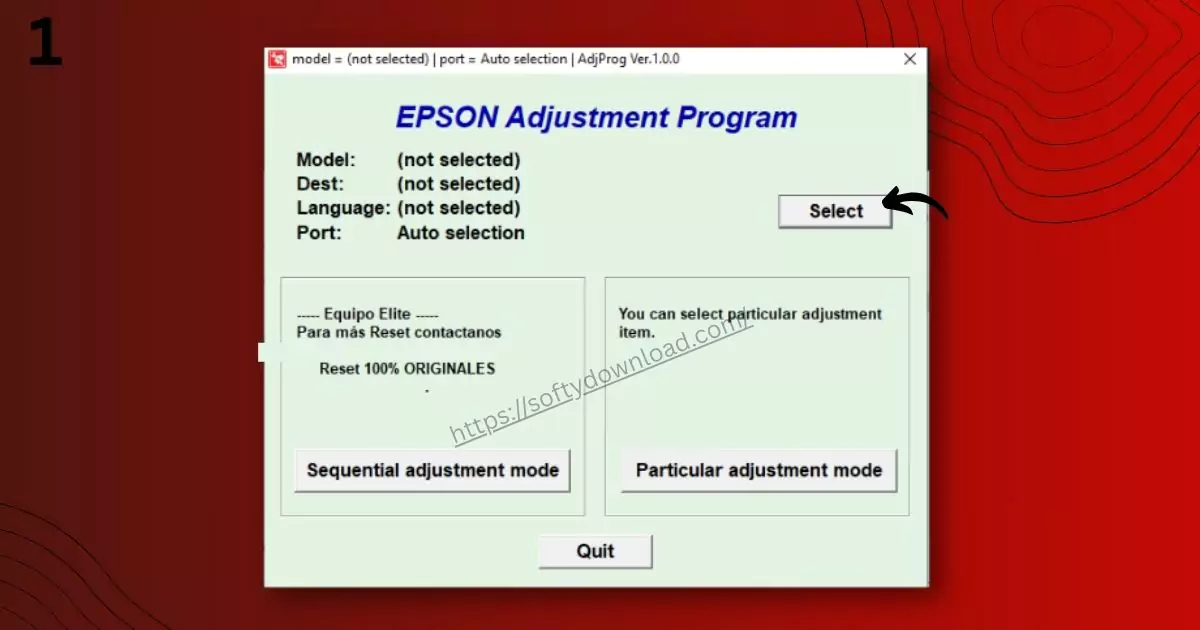
The most accurate way is to use a small piece of software called the Adjustment Program (or Resetter Tool).
Steps to reset with the software:
- Download the Epson L1300 resetter tool from a trusted source.
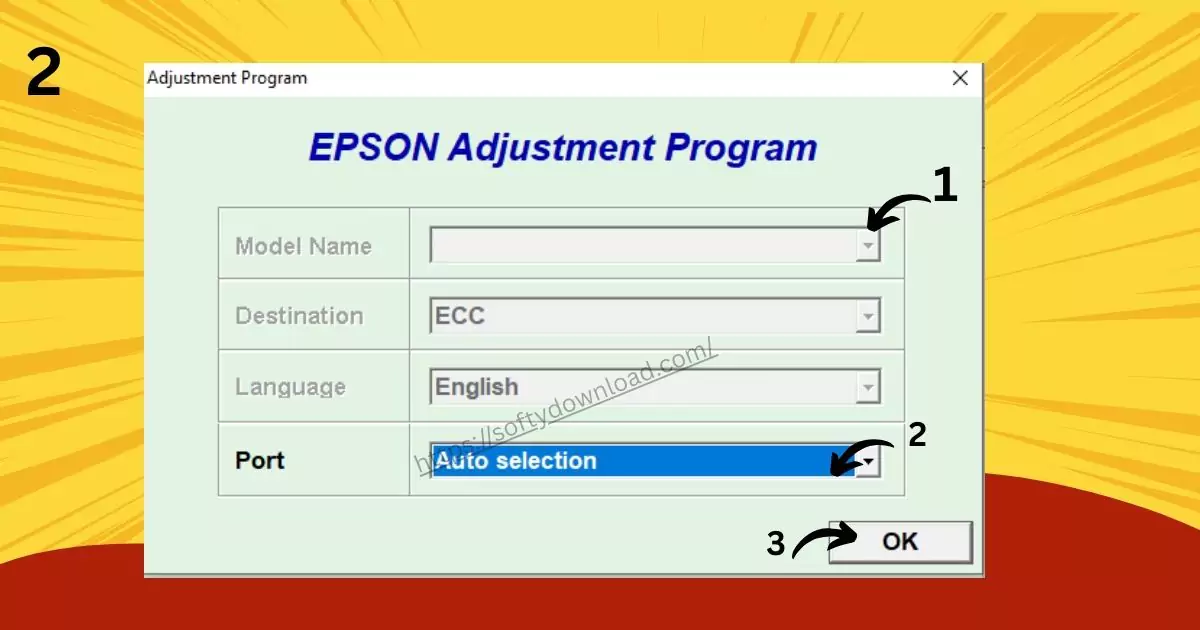
- Extract the files and run the AdjProg.exe application.
- Select the Epson L1300 model and your printer port (usually “Auto Select”).
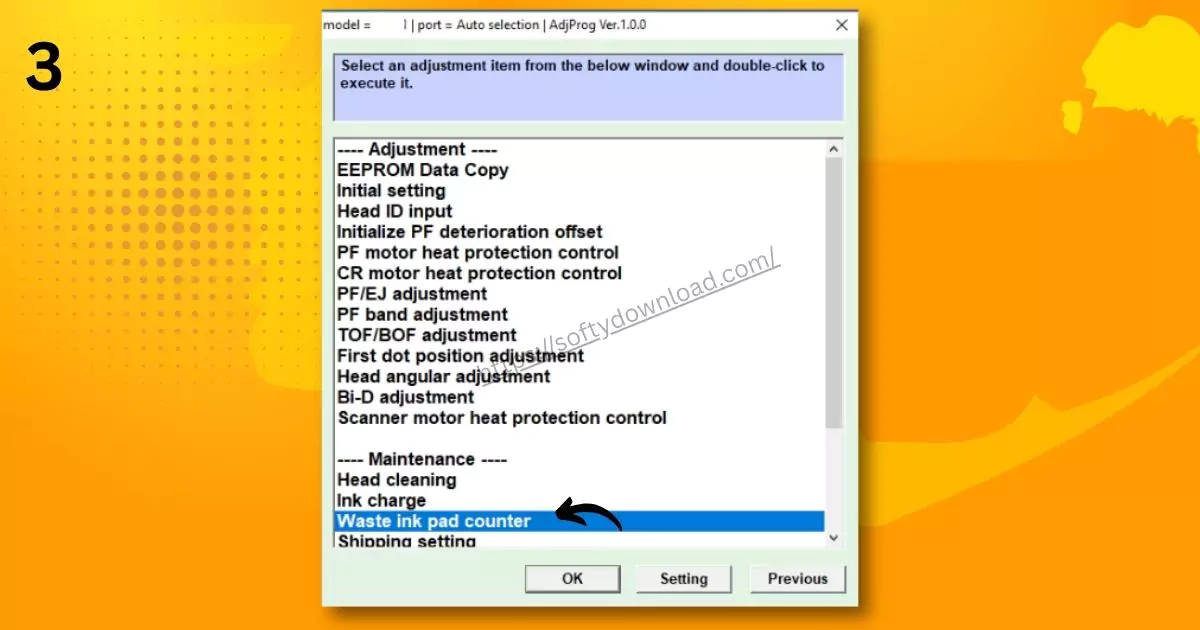
- Open Particular Adjustment Mode.
- Choose Waste Ink Pad Counter from the list.
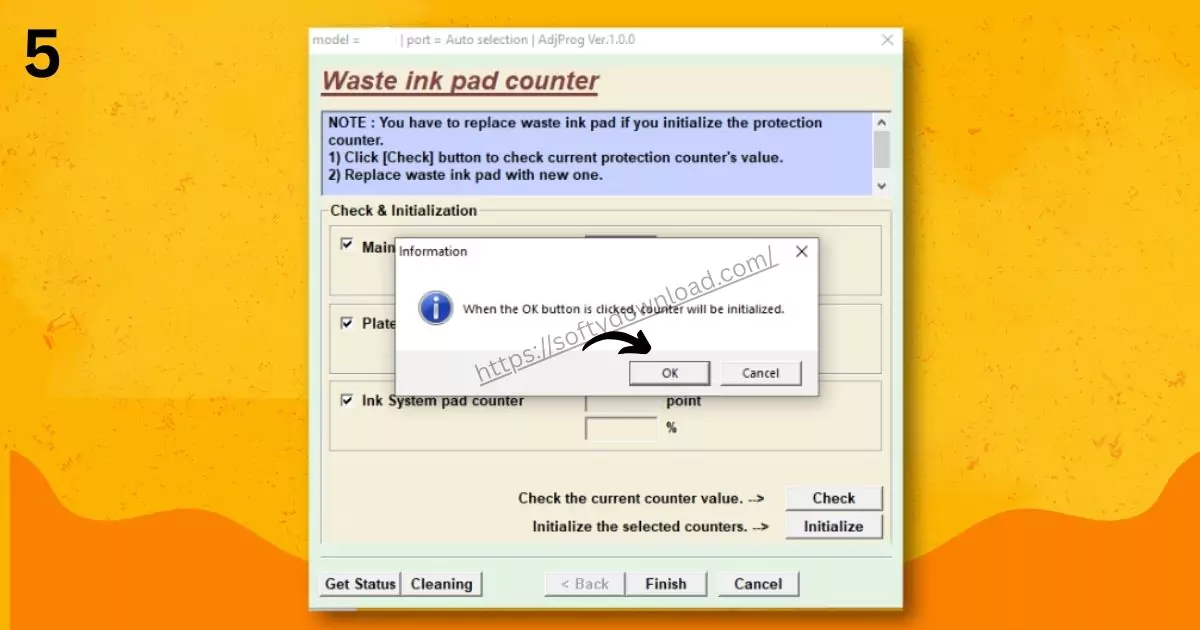
- Check the boxes, then click Initialization.
- Wait until the program confirms the reset is done.
- Restart your printer.
After this, your printer should stop blinking and start working again.
Epson L1300 Resetter Software Download

2. Using buttons to manually reset (temporary fix)
You can attempt a button combination on your printer if you do not immediately have the resetter tool. This might be useful in an emergency, but it doesn’t always work permanently.
How to reset the Epson L1300 manually:
- Switch the printer off.
- The Resume/Reset button should be pressed and held.
- Press and hold the Power button for ten to fifteen seconds.
- Wait for the printer to restart after releasing both buttons.
This frequently fixes minor, transient issues, but it might not fully reset the waste ink counter. The adjustment program is the superior choice for a long-term solution.
Important Notes Before Resetting
- Resetting doesn’t empty the pad physically. If your printer has been used for years, consider replacing or cleaning the waste ink pad to prevent overflow.
- Use trusted tools only. Many websites offer resetter downloads, but some may contain harmful files. Be cautious.
- Back up your preferences. Sometimes, after a reset, the printer settings return to factory defaults.
Advantages of Resetting Epson L1300
- Restores normal printing without service center visits
- Saves money and time
- Quick process—usually done in under 10 minutes
- Extends the printer’s usable life
When a Reset May Not Be Enough
If your Epson L1300 still refuses to print even after resetting, the issue could be more than just the ink pad counter. Possible problems include:
- Clogged print head
- Faulty hardware
- Actual waste ink overflow
In such cases, it’s better to take the printer to an authorized Epson service center.
FAQs on Epson L1300 Reset
- My Epson L1300 is blinking red lights. Does that mean it’s broken?
No. It usually means the waste ink counter has reached its limit. A reset should fix it. - Can I reset Epson L1300 without software?
Yes, but only temporarily using the manual button method. For a permanent fix, the resetter software is required. - Is it safe to use a resetter program?
Yes, if downloaded from a reliable source. It only resets the waste ink counter—it won’t harm your printer. - How often do I need to reset the L1300?
It depends on how heavily you use the printer. Frequent users may need to reset every few months, while occasional users may only need it once a year. - After resetting, do I have to swap out the waste ink pad?
Not right away. To prevent ink leaks, it is advised to replace or clean your printer if it is old. - What happens if the fault persists after resetting?
There can be a hardware issue with your printer if the error persists. Look for expert assistance.
Final Thoughts
The Epson L1300 reset process is straightforward and can save you from unnecessary panic when your printer suddenly stops working. With the adjustment program, you can bring your printer back to life in minutes, while the manual reset trick can help you in urgent situations.
Remember, though: resetting only clears the printer’s memory—it doesn’t deal with the actual waste ink pad. For long-term reliability, clean or replace the pads whenever necessary.
By learning how to reset your Epson L1300, you gain control over common printer errors without spending extra money on service calls.