Getting a “boot device not found” error when you start your computer can be frustrating, but this guide will help you get back up and running. This troubleshooting walkthrough is designed for Windows users dealing with startup problems, whether you’re tech-savvy or just need step-by-step help to fix your computer that won’t boot.
When your system can’t find a boot device, it usually means your computer can’t locate the hard drive or the files it needs to start Windows. The good news? Most boot device errors can be fixed without losing your data.
We’ll walk you through the most effective solutions, starting with simple BIOS boot order adjustments that often solve the problem instantly. You’ll also learn how to repair corrupted boot records and files that prevent Windows from starting properly. Finally, we’ll cover how to diagnose and fix hardware issues when your hard drive isn’t being detected at all.
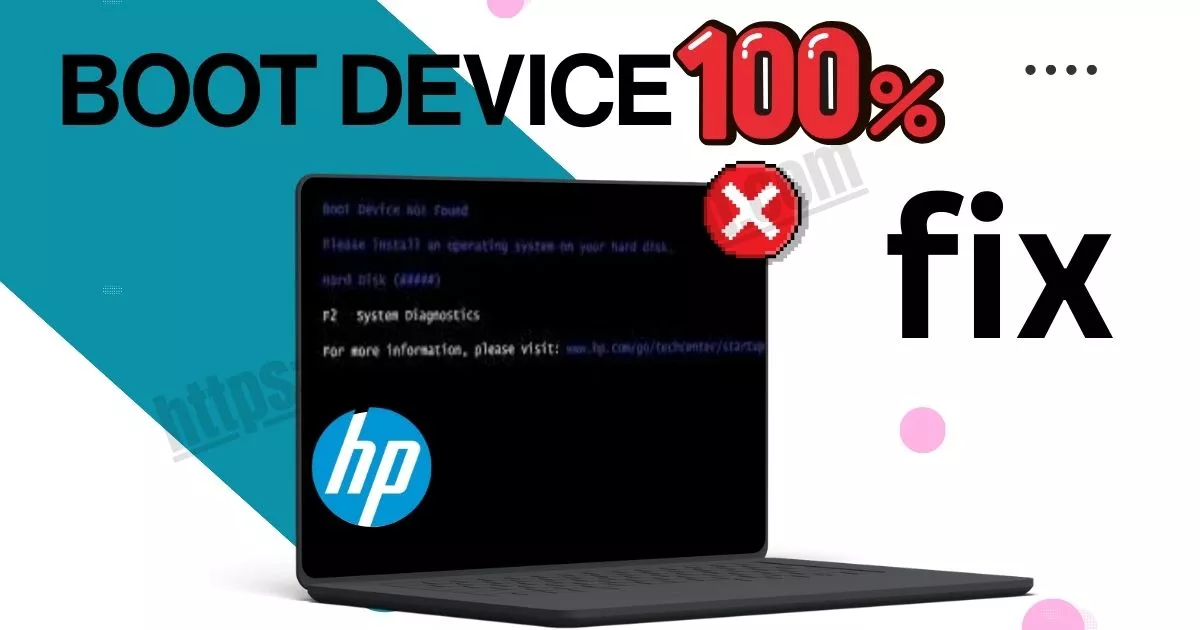
Recognize Common Error Messages and Symptoms
When your computer encounters a boot device not found error, you’ll typically see messages like “Boot Device Not Found,” “No Boot Device Available,” “Operating System Not Found,” or “Hard Drive Not Detected.” These errors often appear on a black screen during startup, sometimes accompanied by beeping sounds or blinking cursor symbols that indicate your system can’t locate the primary storage device.
Identify When the Error Typically Occurs
Boot device error troubleshooting becomes necessary when these issues surface during the initial startup sequence, right after the manufacturer logo disappears. The error commonly happens after power outages, system updates, hardware changes, or when BIOS boot order settings get corrupted. Physical impacts to laptops or desktop computers can also trigger these problems unexpectedly.
Distinguish Between Hardware and Software Causes
| Hardware Causes | Software Causes |
|---|---|
| Loose SATA/power cables | Corrupted boot records |
| Failed hard drive/SSD | Modified BIOS settings |
| Damaged motherboard connectors | Missing system files |
| Defective storage device | Malware infections |
Hard drive not detected errors usually point to physical connection problems, while software-related causes involve corrupted boot configurations that startup repair Windows tools can often fix without hardware replacement.
Quick Troubleshooting Steps to Try First
Restart your computer and check for temporary glitches
Sometimes a simple restart resolves the boot device not found error completely. Power down your computer for 30 seconds, then restart to clear any temporary system conflicts that might prevent proper hardware detection.
Verify all cables and connections are secure
Check that your hard drive cables are firmly connected to both the motherboard and storage device. Loose SATA or power cables commonly cause boot device error messages, especially after moving or cleaning your computer.
Remove external USB devices and storage media
Disconnect all USB drives, external hard drives, and CDs/DVDs before restarting. Your computer might attempt booting from these external devices instead of your main hard drive, causing the boot device not found Windows error.
Access BIOS to check boot order settings
Enter BIOS during startup (usually F2, F12, or Delete key) to verify your BIOS boot order settings. Ensure your primary storage device appears first in the boot sequence for proper boot configuration.
Fixing Boot Order and BIOS Configuration Issues
Enter BIOS setup during computer startup
Power on your computer and immediately start pressing the designated key to access BIOS setup. Common keys include F2, F12, Delete, or Esc, depending on your motherboard manufacturer. Watch for the brief startup screen that displays which key to press – timing is critical since the window only lasts a few seconds. If you miss it, restart and try again quickly.
Reset boot priority to correct hard drive
Navigate to the Boot menu or Boot Priority section within BIOS. Look for your primary hard drive in the boot device list and move it to the first position using the arrow keys or function key commands shown on screen. Remove any USB drives or external devices that might be interfering with the boot order. Your main storage drive should appear as the top priority device.
Enable or disable UEFI/Legacy boot modes
Check your boot mode settings in the BIOS configuration. Modern systems typically use UEFI, while older installations may require Legacy mode. If your system previously worked with Windows installed, match the boot mode to your original installation type. Switching between UEFI and Legacy modes can resolve compatibility issues causing boot device errors.
Save changes and restart to test fixes
Press F10 or navigate to the Save & Exit option to preserve your BIOS changes. Select “Save Changes and Exit” to restart your computer with the new boot configuration. Your system will attempt to boot using the corrected settings. If the boot device error persists, you may need to explore hardware connection issues or boot record corruption problems.

Resolving Hard Drive Connection Problems
Check SATA or IDE cable connections
Physical connection problems frequently cause boot device errors. Start by powering down your computer completely and unplugging it from the wall. Open your computer case and locate the data cables connecting your hard drive to the motherboard. SATA drives use flat, thin cables, while older IDE drives have wider ribbon cables. Gently disconnect and firmly reconnect these cables at both the drive and motherboard ends, ensuring they click securely into place.
Test with different data cables
Cable degradation can prevent your computer from detecting the hard drive even when connections appear secure. Swap your current SATA or IDE cable with a known working spare. If you don’t have replacement cables available, try using the cable from your optical drive temporarily. Bad cables often show intermittent failures, so a working cable can immediately resolve boot device not found errors caused by faulty connections.
Verify power supply connections to drive
Hard drives require stable power connections to function properly. Locate the power connector attached to your drive – SATA drives use small L-shaped connectors while IDE drives use larger 4-pin Molex connectors. Disconnect and reconnect the power cable firmly, checking for any loose connections. If available, try a different power connector from your PSU to rule out power delivery issues that could prevent drive detection.
Repairing Corrupted Boot Records and Files
Use Windows Recovery Environment tools
When your system encounters boot record corruption, Windows Recovery Environment (WinRE) provides essential repair tools. Boot from a Windows installation disc or recovery drive and select “Repair your computer.” Access Advanced Options and choose Startup Repair, which automatically scans for corrupted boot files and attempts to fix boot configuration errors.
Run bootrec commands from Command Prompt
Open Command Prompt from the Advanced Options menu and execute these critical bootrec commands: /fixmbr repairs the master boot record, /fixboot writes a new boot sector, and /scanos scans for Windows installations. These commands target specific boot device error troubleshooting scenarios and can resolve many boot device not found Windows issues without requiring complete system reinstallation.
Testing and Replacing Faulty Hardware
Run hard drive diagnostic tests
Most manufacturers provide built-in diagnostic utilities accessible through BIOS or bootable tools. Run these comprehensive tests to identify bad sectors, mechanical failures, or controller issues that could trigger boot device not found errors. Tools like Windows Memory Diagnostic, manufacturer-specific utilities (like Seagate SeaTools or Western Digital Data Lifeguard), and third-party software can reveal hidden hardware problems before complete drive failure occurs.
Check RAM modules for errors
Faulty RAM can corrupt boot processes and prevent proper hardware detection during startup. Remove and reseat memory modules, then test each stick individually in different slots. Run Windows Memory Diagnostic or MemTest86 to identify memory errors that might interfere with boot device recognition and system stability.
Test with a different hard drive or SSD
Swap your current storage device with a known working drive to isolate whether the problem stems from drive failure or other system components. This quick diagnostic method helps distinguish between corrupted boot records, failing hardware, or motherboard-related issues causing the boot device error.
Evaluate motherboard and power supply issues
Insufficient power delivery or failing motherboard components can prevent drives from being detected during startup. Check all power connections, test with a different PSU if available, and inspect motherboard capacitors for visible damage. SATA port failures on motherboards commonly cause intermittent boot device detection problems.
Preventing Future Boot Device Errors
Create regular system backups
Regular backups serve as your safety net when boot device errors strike unexpectedly. Set up automated weekly backups using Windows built-in tools or third-party software to create complete system images. Store backups on external drives or cloud storage to ensure you can quickly restore your system without losing critical data or spending hours troubleshooting boot configuration problems.
Monitor hard drive health with diagnostic tools
Your hard drive’s health directly impacts boot reliability, making regular monitoring essential for preventing future boot device not found errors. Use built-in tools like Windows CHKDSK or download specialized software such as CrystalDiskInfo to track drive temperature, bad sectors, and performance metrics. These diagnostic tools provide early warning signs of drive failure, allowing you to replace hardware before complete failure occurs and leaves your computer won’t boot.
Keep BIOS firmware updated
Outdated BIOS firmware can cause compatibility issues with newer storage devices and create unexpected boot order problems. Check your motherboard manufacturer’s website quarterly for BIOS updates that improve hardware detection and fix boot-related bugs. Modern BIOS versions often include better support for various storage interfaces and enhanced startup repair capabilities, reducing the likelihood of encountering boot device error troubleshooting scenarios.
Maintain clean internal connections and components
Physical maintenance prevents many boot device detection issues before they start affecting your system. Clean dust from motherboard connections, SATA cables, and power connectors every six months using compressed air. Loose or corroded connections frequently cause hard drive not detected errors that appear as boot device failures. Ensure all cables are firmly seated and replace any showing signs of wear or damage to maintain reliable boot performance.
Conclusion
A “boot device not found” error might seem scary at first, but most of the time it’s something you can fix yourself. Start with the simple stuff – check your boot order in BIOS, make sure all cables are properly connected, and verify your hard drive is being detected. If those quick fixes don’t work, you’ll likely need to dig deeper into boot record repairs or hardware testing.
The good news is that this problem rarely means your data is gone forever. Even if you end up needing to replace a faulty hard drive, your files can often be recovered. Keep your system updated, regularly check your hard drive health, and back up your important files to avoid dealing with boot errors in the future. When in doubt, don’t hesitate to seek professional help – sometimes a technician can spot issues that aren’t obvious to the average user.