Getting your TVS MSP 240 printer working on Windows 10 or 11 can be tricky without the right drivers. This guide is for home users, office workers, and IT professionals who need to set up their TVS MSP 240 Classic Plus printer or troubleshoot existing driver issues.
Many people struggle with finding the correct TVS MSP 240 driver download for their specific Windows version, whether they’re running 32-bit or 64-bit systems. The good news is that installing these drivers doesn’t have to be complicated once you know where to look and what steps to follow.
We’ll walk you through finding the official TVS MSP 240 drivers from reliable sources and show you the complete installation process for both Windows 10 and 11. You’ll also learn how to fix common problems that pop up during installation, so you can get your printer running smoothly without calling tech support.
Understanding TVS MSP 240 Printer Requirements
System compatibility check for Windows 10/11
Before downloading the TVS MSP 240 driver, verify your Windows version by pressing Windows key + R, typing “winver” and hitting Enter. The TVS MSP 240 Classic Plus driver supports both Windows 10 and Windows 11 in 32-bit and 64-bit architectures. Check your system type in Settings > System > About to confirm whether you need the 32-bit or 64-bit version. Most modern systems run 64-bit Windows, but older machines might require the 32-bit TVS MSP 240 driver download.
Identifying your printer model and version
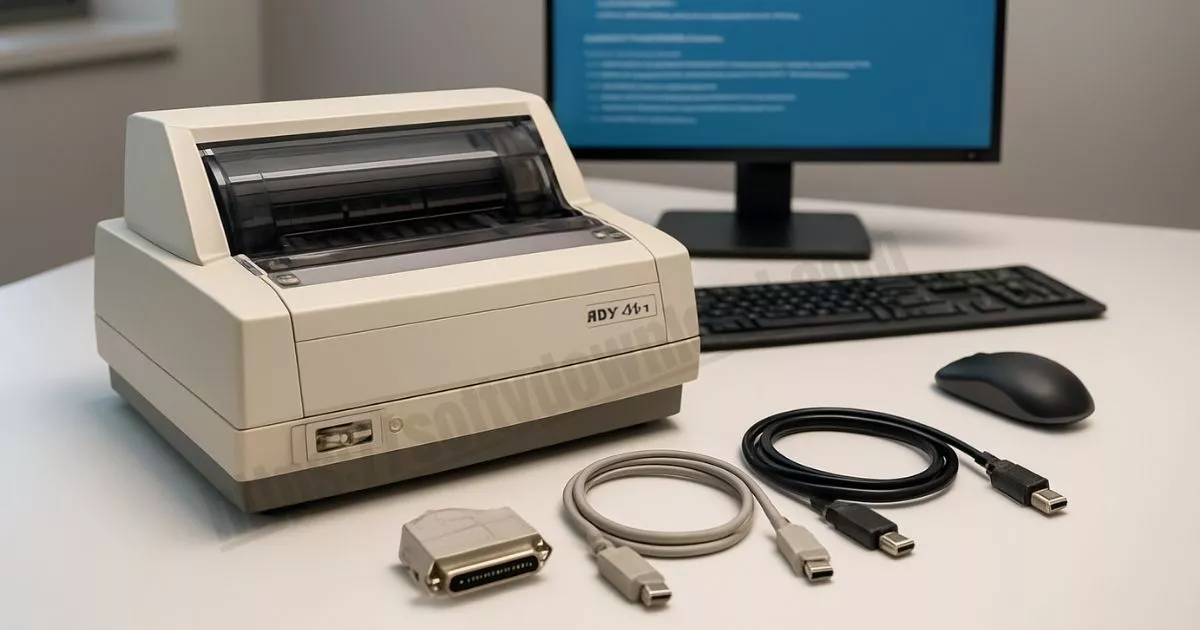
Look for the model label on your TVS printer’s front or back panel to confirm you have the MSP 240 Classic Plus variant. Some users confuse this with the MSP 270 Classic Plus, which requires different drivers. The exact model number determines which TVS printer driver installation package you’ll need. Double-check the serial number and manufacturing details to avoid downloading incompatible software that could cause printing issues.
Checking current driver status
Open Device Manager by right-clicking the Start button and selecting it from the menu. Look for “Printers” or “Print queues” section to see if your TVS MSP 240 appears with a yellow warning triangle, indicating driver problems. If the printer shows up as “Unknown device” or isn’t listed at all, you’ll need the official TVS MSP 240 driver. Right-click the printer entry and select “Properties” to view current driver version and status details.
Locating Official TVS MSP 240 Drivers
Accessing TVS Electronics Official Website
Getting the right TVS MSP 240 driver download starts with visiting TVS Electronics’ official website at www.tvselectronics.co.in. This ensures you’re downloading authentic drivers directly from the manufacturer rather than potentially harmful third-party sources. The official site provides the most up-to-date TVS MSP 240 Windows 10 driver and TVS MSP 240 Windows 11 driver versions, along with complete compatibility information for your specific printer model.
Navigating to Driver Download Section
Once on the TVS Electronics homepage, look for the “Support” or “Downloads” section, typically found in the main navigation menu. Click on “Driver Downloads” or “Product Support” to access the driver repository. You’ll find a search function where you can type “MSP 240” or browse through product categories. The site organizes drivers by printer series, making it easy to locate your TVS MSP 240 classic plus driver download options for various Windows versions.
Selecting Correct Windows Version Drivers
Choose the appropriate driver based on your Windows operating system and architecture. Options typically include:
- TVS MSP 240 classic plus driver Windows 7 32 bit
- TVS MSP 240 classic plus driver Windows 7 64 bit
- TVS MSP 240 classic plus driver Windows 11 64 bit
- TVS MSP 240 classic plus printer driver for Windows 10 64 bit
Check your system specifications by right-clicking “This PC” and selecting “Properties” to confirm whether you need 32-bit or 64-bit drivers. Download only the driver that matches your exact Windows version to avoid compatibility issues during TVS printer driver installation.
Verifying Driver Authenticity and Safety
Before downloading, verify the file details including version number, file size, and release date. Authentic TVS MSP 240 official driver files are digitally signed by TVS Electronics and come with SSL-secured download links. Check for the padlock icon in your browser’s address bar when downloading. Avoid drivers from unofficial websites or forums, as these may contain malware. The official TVS MSP 240 driver free download should always come directly from TVS Electronics’ verified domain to ensure your system’s security and optimal printer performance.
Step-by-Step Driver Download Process
Creating System Restore Point Before Installation
Before downloading the TVS MSP 240 driver, create a system restore point to protect your Windows configuration. Navigate to Control Panel > System and Security > System, then click “System Protection” and select “Create.” This safety measure allows you to roll back changes if driver installation causes system issues.
Downloading Driver Files to Designated Folder
Visit the official TVS website or authorized driver repositories to download the TVS MSP 240 Windows 10 driver or TVS MSP 240 Windows 11 driver. Create a dedicated folder on your desktop named “TVS_MSP_240_Drivers” to keep files organized. Save the downloaded driver package directly to this folder, ensuring you select the correct version matching your Windows architecture (32-bit or 64-bit). Verify the file integrity by checking the file size matches the official specifications before proceeding.
Extracting Compressed Driver Packages
Most TVS MSP 240 driver downloads come as compressed ZIP or RAR files. Right-click the downloaded file and select “Extract All” or use extraction software like WinRAR. Extract contents to the same designated folder you created earlier. The extracted files typically include setup executables, INF files, and supporting documentation. Check that all files extracted successfully before beginning the installation process, as incomplete extraction can cause driver installation failures.
Installing TVS MSP 240 Drivers on Windows
Running driver installer as administrator
Right-click the downloaded TVS MSP 240 driver file and select “Run as administrator” to ensure proper installation permissions. This step prevents common installation errors and allows the driver to access necessary system files during the setup process.
Following installation wizard prompts
The TVS MSP 240 driver installation wizard will guide you through each step. Click “Next” to proceed through license agreements, select your preferred installation directory, and choose custom settings if needed. Accept the default settings for standard installations to ensure optimal TVS printer driver Windows 10 compatibility.
Connecting printer during setup process
Connect your TVS MSP 240 Classic Plus printer to your Windows computer using the USB cable when prompted by the installation wizard. Ensure the printer is powered on and properly connected before proceeding. The system will automatically detect the printer and establish communication for proper TVS MSP 240 printer setup.
Completing driver configuration settings
Configure your TVS MSP 240 Windows 11 driver settings by selecting the correct printer port, paper size, and print quality preferences. Access the printer properties dialog to adjust advanced settings like print speed, character encoding, and communication protocols specific to your TVS MSP 240 Classic Plus model requirements.
Restarting system to finalize installation
Restart your Windows computer to complete the TVS MSP 240 driver installation process. This step ensures all driver components are properly loaded into system memory and registry settings are updated. After rebooting, verify the printer appears in your devices list and perform a test print to confirm successful installation.
Troubleshooting Common Driver Installation Issues
Resolving Compatibility Error Messages
When Windows displays compatibility warnings during TVS MSP 240 driver installation, first check if you’re using the correct driver version for your operating system. Download the specific TVS MSP 240 Windows 10 driver or TVS MSP 240 Windows 11 driver from the official website. Right-click the installer, select “Properties,” then navigate to the “Compatibility” tab. Choose “Run this program in compatibility mode” and select an earlier Windows version like Windows 7 or 8. You can also try running the installer as an administrator by right-clicking and selecting “Run as administrator.” For persistent compatibility issues, disable Windows Defender temporarily during installation, as antivirus software sometimes blocks printer driver installations.
Fixing Driver Signature Verification Problems
Driver signature verification errors occur when Windows cannot verify the digital signature of the TVS MSP 240 driver. To bypass this, restart your computer and press F8 during startup to access Advanced Boot Options. Select “Disable Driver Signature Enforcement” and proceed with the driver installation. Alternatively, hold Shift while clicking “Restart” in Windows, then navigate to Troubleshoot > Advanced Options > Startup Settings > Restart. Press F7 to disable driver signature enforcement temporarily. For permanent solutions, access Local Group Policy Editor (gpedit.msc) and navigate to Computer Configuration > Administrative Templates > System > Device Installation. Enable “Allow installation of devices using drivers that match these device setup classes” and add the printer class GUID.
Addressing Installation Failure Scenarios
Installation failures often stem from corrupted previous drivers or registry conflicts. Start by completely uninstalling any existing TVS printer drivers through Device Manager and Programs & Features. Clear the driver store using the command prompt: run “pnputil /delete-driver oem*.inf /uninstall” for TVS-related entries. Clean the Windows registry using Registry Editor, removing TVS printer entries under HKEY_LOCAL_MACHINE\SYSTEM\CurrentControlSet\Control\Print. Restart your computer and disconnect the printer during the fresh driver installation process. Connect the TVS MSP 240 printer only after the driver installation completes successfully. If problems persist, try installing the TVS MSP 240 driver in Safe Mode, which prevents interference from third-party software and services.
Optimizing Printer Performance Post-Installation
Testing Print Quality and Functionality
Run several test prints immediately after installing your TVS MSP 240 driver to verify everything works correctly. Print a standard text document, check character alignment, and test different font sizes to ensure crisp output quality.
Configuring Printer Preferences and Settings
Access the TVS MSP 240 printer properties through Windows Control Panel to customize print density, paper size settings, and character spacing. Adjust these preferences based on your typical printing requirements to achieve optimal results for receipts and invoices.
Setting Up Automatic Driver Updates
Enable Windows automatic updates to keep your TVS MSP 240 driver current with the latest compatibility patches. Visit the TVS Electronics website periodically to check for newer driver versions that might improve performance or add Windows 11 support features.
Establishing Regular Maintenance Schedule
Create a monthly maintenance routine that includes cleaning print heads, checking ribbon alignment, and running diagnostic tests. Regular maintenance prevents common printing issues and extends your TVS MSP 240 printer’s lifespan while maintaining consistent print quality.
Conclusion
Getting your TVS MSP 240 printer up and running on Windows 10 or 11 doesn’t have to be a headache. We’ve covered everything from finding the right drivers on the official TVS website to walking through the installation process step by step. Remember to always download drivers from trusted sources, and don’t skip those Windows updates – they often include important compatibility fixes that can save you trouble down the road.
If you run into any hiccups during installation, the troubleshooting tips we discussed should help you get back on track quickly. Once everything is set up, take a few minutes to optimize your printer settings for the best performance. Your TVS MSP 240 is a reliable workhorse, and with the proper drivers installed, you’ll be printing smoothly for years to come. Keep those driver files handy for future reinstalls, and you’ll thank yourself later.