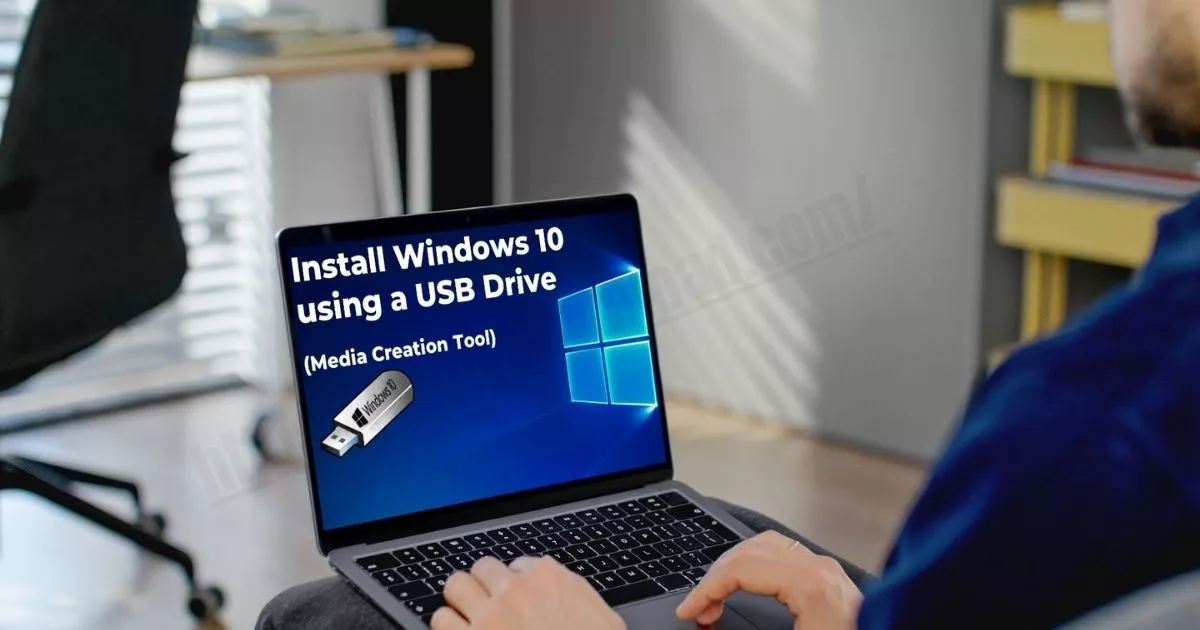

Installing Windows 10 can feel confusing if you’re doing it for the first time — but the process is actually very simple when you follow the correct steps. Whether you want to install Windows 10 in a laptop, install Windows 10 in a PC, or do a clean install using an ISO file, this guide walks you through everything from preparation to final setup.
This is your step-by-step tutorial, even if you are a complete beginner.
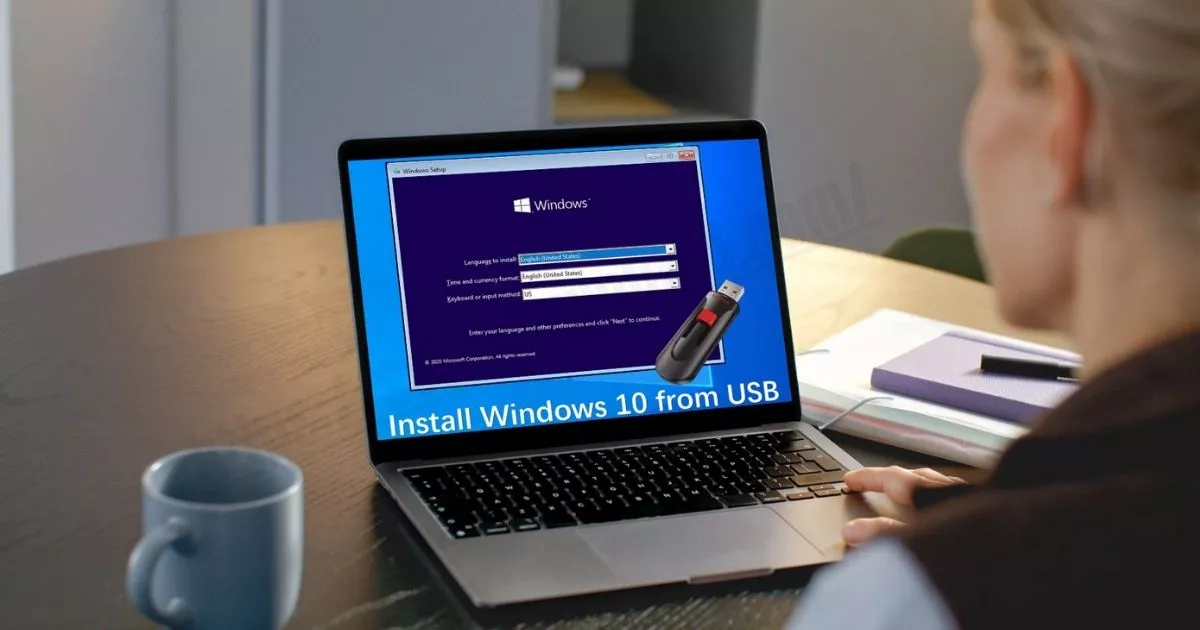
Why Do People Install Windows 10?
Millions still prefer Windows 10 because it is:
- Light and fast
- Compatible with older devices
- Clean UI
- Stable performance
- Great for office work, gaming, and general use
And yes — you can download and install Windows 10 for free legally from Microsoft.
What You Need Before Installing Windows 10
Before you start, make sure you have:
✓ A Pen Drive (8 GB or more)
You will use this to create a bootable USB.
✓ Windows 10 ISO File or Media Creation Tool
Free from Microsoft.
✓ A working internet connection
(Optional, but helpful)
✓ Backup of personal files
Because installing Windows may delete data if you choose “Clean Install”.
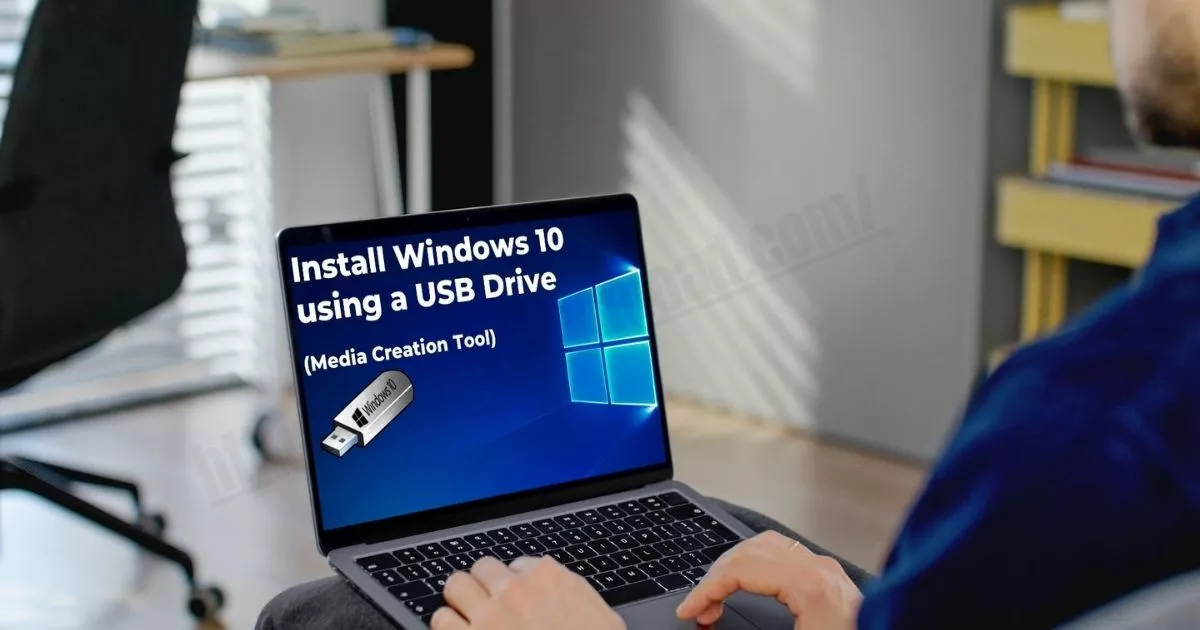
How to Install Windows 10 Step by Step
This is the complete guide for installing Windows 10 on any device — laptop, desktop, or new PC build.
STEP 1: Download Windows 10 (Free & Official Method)
Microsoft provides Windows 10 ISO 100% free.
Method 1: Using the Media Creation Tool
- Go to Microsoft’s official website
- Click Download Windows 10 Tool
- Run the file
- Select Create Installation Media (USB, DVD, ISO)
- Choose language → Edition → Architecture (64-bit recommended)
Method 2: Direct ISO Download
If you want the ISO file:
- Go to Microsoft’s Windows 10 download page
- Choose Windows 10 ISO File
- Select language
- Download 64-bit version
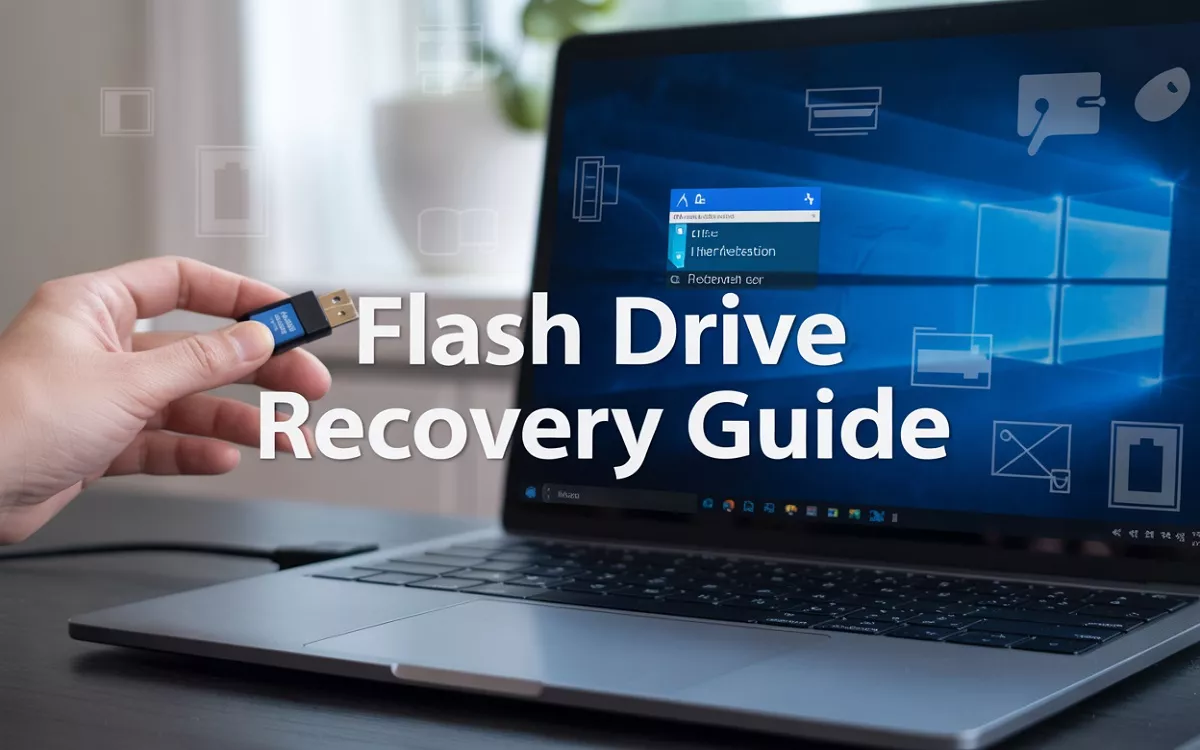
STEP 2: Create a Bootable USB Drive
This step is required to install Windows from a pen drive.
Using Media Creation Tool
- Insert your USB drive
- Open the tool
- Select USB Flash Drive
- Choose your pen drive
- Click Next
- Windows will automatically create a bootable drive
Using Rufus (ISO Method)
If you downloaded the ISO file manually:
- Download Rufus
- Insert USB drive
- Open Rufus
- Select your Windows 10 ISO
- Partition scheme → GPT
- File system → NTFS
- Click Start
Your Windows 10 bootable pen drive is ready.
STEP 3: Boot Your Laptop/PC From the USB Drive
To start the installation:
1. Insert the USB drive
2. Restart the laptop/PC
3. Enter BIOS/Boot Menu
Usually by pressing:
- F2
- F12
- Del
- Esc
(depends on laptop/PC brand)
4. Select USB Device from Boot Menu
Windows setup will now begin.
STEP 4: Start the Windows 10 Installation
Once the setup starts:
- Select Language, Time, Keyboard Layout
- Click Install Now
- Enter Product Key (Optional)
- You can skip it and activate later.
- Select Windows 10 Edition
- Choose Custom Install (Advanced)
This option allows you to install Windows fresh.
STEP 5: Partition Setup
You will see your disk here.
If you want a clean install:
- Delete all partitions
- Create a new one
- Select the Primary Partition
- Click Next
If you want to keep data:
- Install Windows only on the C: partition
- Do NOT delete other drives (D:, E:, etc.)
Windows will now install files — this takes 10–20 minutes.

STEP 6: Complete the Initial Setup
After installation, Windows will restart.
Follow the on-screen instructions:
- Choose Region & Keyboard Layout
- Connect Wi-Fi (optional)
- Log in with Microsoft Account (optional)
- Choose Privacy settings
- Create a PIN
Once done, Windows 10 desktop will appear.
Congratulations — your Windows 10 is installed successfully!
How to Install Windows 10 From ISO File (Without USB)
If you’re already using Windows and want to reinstall:
- Right-click ISO file
- Click Mount
- Open the mounted drive
- Run setup.exe
- Choose Keep files and apps or Clean Install
This installs Windows without using a USB.
How to Install Windows 10 to Flash Drive (Portable Windows)
If you want Windows to run directly from your USB drive, use Rufus:
- Open Rufus
- Select USB
- Choose Windows 10 ISO
- Under “Image Option” → Select Windows To Go
- Start
This will create a portable Windows environment.
Troubleshooting: Common Windows 10 Installation Problems
1. USB Not Showing in Boot Menu
- Try a different port
- Enable Legacy/CSM in BIOS
- Recreate bootable USB
2. Partition Error
- Use “Delete All Partitions” and recreate
- Convert disk to GPT (using Rufus)
3. Stuck on Logo Screen
- Remove USB after first restart
- Check RAM or HDD connection
Frequently Asked Questions
1. Can I install Windows 10 for free?
Yes, you can download it free from Microsoft. Activation requires a key, but installation does not.
2. How long does the installation take?
Around 20–40 minutes depending on system performance.
3. Do I need a product key?
No. You can skip it and activate later.
4. Will installing Windows delete my data?
Only if you delete partitions or do a clean install.
5. Can I install Windows 10 from my phone?
Yes, using OTG + ISO tools, but not recommended for beginners.
Conclusion
Installing Windows 10 is simple when you follow the right steps.
Whether you’re installing Windows 10 on a laptop, a new PC, or from an ISO file, this guide covers everything clearly and safely.
With the official tools and a bootable USB, anyone can install Windows 10 in less than an hour — even if it’s your first time.